How to Add Blank Pages to a PDF
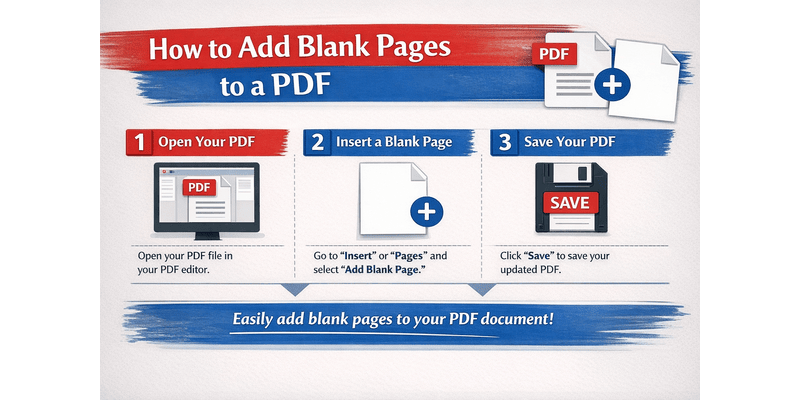
Adding blank pages to a PDF is useful for organizing documents, preparing files for printing, or creating space for notes. With PDFToolZone, you can insert blank pages into your PDF quickly and easily — no software installation required.
Why Add Blank Pages?
- Start new chapters on the right-hand side
- Fix double-sided printing alignment
- Create section dividers
- Add space for handwritten notes
- Meet formatting or submission requirements
Step-by-Step Guide
Step 1: Upload Your PDF
Open the Add Blank Pages tool on PDFToolZone and upload your PDF file.
Step 2: Choose Where to Insert
Select whether you want to insert blank pages at:
- The beginning
- The end
- Before a specific page
- After a specific page
Step 3: Select Number of Blank Pages
Choose how many blank pages you want to add.
Step 4: Process and Download
Add Blank Pages NowFrequently Asked Questions
Is it safe to upload my PDF?
Yes. Your files are processed securely and deleted automatically after processing.
Can I add multiple blank pages at once?
Yes, you can choose the number of blank pages before processing.
Does it work on mobile devices?
Yes, PDFToolZone works on smartphones, tablets, and desktop devices.